





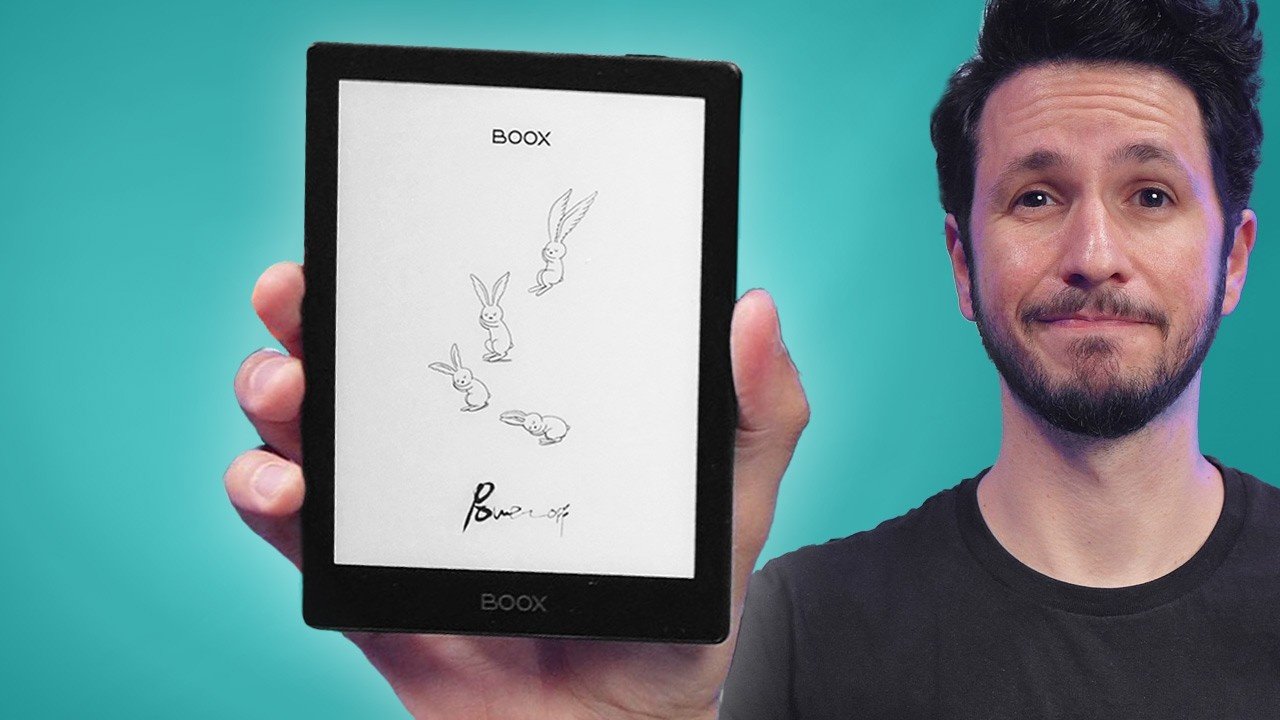
The Onyx eReader is one of the most versatile devices for avid readers, offering a perfect blend of portability, comfort, and advanced technology. Whether you enjoy novels, academic texts, or comics, customizing your Onyx eReader can elevate your reading experience and make every session more enjoyable. This article explores effective strategies to personalize your device, ensuring maximum comfort, usability, and enjoyment.
Understanding Your Onyx eReader
Before diving into customization, it’s essential to understand the core features of your Onyx eReader. These devices often come with high-resolution e-ink screens, long battery life, and support for multiple file formats such as EPUB, PDF, MOBI, and TXT. Many models also allow cloud synchronization, annotation, and text-to-speech features, giving readers a flexible digital experience. Familiarizing yourself with these functions will help you tailor your device to suit your preferences.
Optimizing Display Settings
One of the most impactful ways to customize your Onyx eReader is by adjusting its display settings. E-ink screens are designed to reduce eye strain, but optimizing brightness, contrast, and font size can further enhance readability. Most Onyx eReader models allow you to choose between warm and cool light settings, which can reduce eye fatigue during long reading sessions. Adjusting margins, line spacing, and page layout also contributes to a more comfortable reading experience.
Choosing the Right Fonts
Typography plays a crucial role in reading comfort. The Onyx eReader supports a variety of font types, allowing you to select one that suits your preferences. Experiment with different fonts and sizes to find the combination that feels natural for your eyes. Many readers prefer serif fonts for long-form texts because they enhance readability, while sans-serif fonts can make digital documents look modern and clean. Additionally, some Onyx eReader models allow you to upload custom fonts for a truly personalized reading style.
Managing Your Library
An organized library significantly improves your reading workflow. The Onyx eReader offers tools for categorizing books by author, genre, or personal tags. Creating collections or folders helps you quickly access your favorite books without endless scrolling. Integrating cloud services like Dropbox or Google Drive can also streamline library management, allowing you to sync your books across multiple devices. Regularly updating your library ensures that your reading experience remains fresh and engaging.
Utilizing Annotation and Note-Taking Features
For students, researchers, or anyone who likes to make notes, the Onyx eReader provides powerful annotation tools. Highlight passages, add comments, or bookmark pages to keep track of important sections. Some models even allow handwriting input with a stylus, making it easy to take detailed notes or sketch diagrams. Proper use of these features can transform your eReader into a versatile study companion, enabling deeper engagement with your reading material.
Customizing Navigation and User Interface
Your Onyx eReader’s navigation settings can be tailored to your reading habits. Adjust page-turning gestures, menu layouts, and shortcut keys to streamline your reading experience. Many readers prefer touch gestures for quick navigation, while others may opt for physical buttons if their device includes them. Customizing the user interface ensures you spend more time enjoying books and less time navigating menus.
Adding Multimedia Content
While eReaders are primarily designed for text, the Onyx eReader supports various multimedia formats, enhancing the overall reading experience. You can include audio books, PDFs with embedded images, or even comics and graphic novels. Some Onyx models offer text-to-speech functionality, allowing you to listen to your books while on the go. Combining reading with audio or visual elements can make learning and entertainment more interactive.
Installing Reading Apps
Many Onyx eReader models run on Android-based systems, which opens up the possibility of installing additional reading apps. Popular apps such as Kindle, Kobo, or Moon+ Reader can provide alternative interfaces, specialized reading tools, and access to extensive digital libraries. Installing these apps can enhance your eReader’s functionality, giving you the best of both worlds: a dedicated e-ink display and versatile app support.
Adjusting Power and Battery Settings
Customizing power management on your Onyx eReader ensures uninterrupted reading sessions. Adjust sleep timers, screen refresh rates, and background syncing to maximize battery life. Using airplane mode during reading can also extend battery longevity by reducing background activity. Efficient battery management means you spend more time immersed in your books and less time charging your device.
Personalizing with Covers and Skins
Physical customization can be just as impactful as software tweaks. Protective covers, cases, or skins not only safeguard your Onyx eReader but also reflect your personal style. Lightweight covers with built-in stands can improve ergonomics, making it easier to hold your device during long reading sessions. Some covers even come with pockets for accessories like a stylus, adding convenience to your reading setup.
Leveraging Cloud and Synchronization Features
Onyx eReader devices often support cloud synchronization, which is crucial for maintaining your reading progress across multiple devices. Sync your bookmarks, annotations, and library content so you can switch seamlessly between your eReader, tablet, or smartphone. This ensures that your customized reading experience is consistent, no matter where you access your books.
Experimenting with Advanced Features
Advanced features like PDF reflow, split-screen reading, and customizable themes allow further personalization. PDF reflow adjusts document layouts for better readability, especially on smaller screens. Split-screen reading can help when cross-referencing multiple texts, while theme customization can change background and text colors to suit your environment. Exploring these options can turn your Onyx eReader into a truly tailored reading companion.
Tips for Long-Term Maintenance
Maintaining your Onyx eReader ensures that your customized settings continue to provide an optimal experience. Regularly update the device firmware to access new features and security improvements. Keep the screen clean and avoid exposure to extreme temperatures or moisture. Proper care will extend the lifespan of your eReader and preserve the settings and customizations you’ve applied.
Conclusion
Customizing your Onyx eReader is a journey that enhances every aspect of reading. From optimizing display settings and choosing the right fonts to leveraging multimedia features and cloud synchronization, every tweak contributes to a smoother, more enjoyable experience. Whether you’re a casual reader or a dedicated bookworm, taking the time to personalize your Onyx eReader will make each reading session more immersive and satisfying. Embrace these customization strategies, and transform your device into the ultimate tool for reading pleasure.